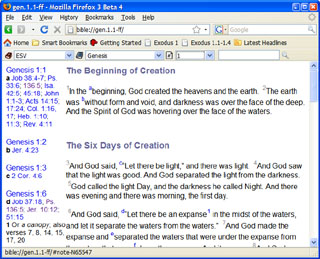
FireBible
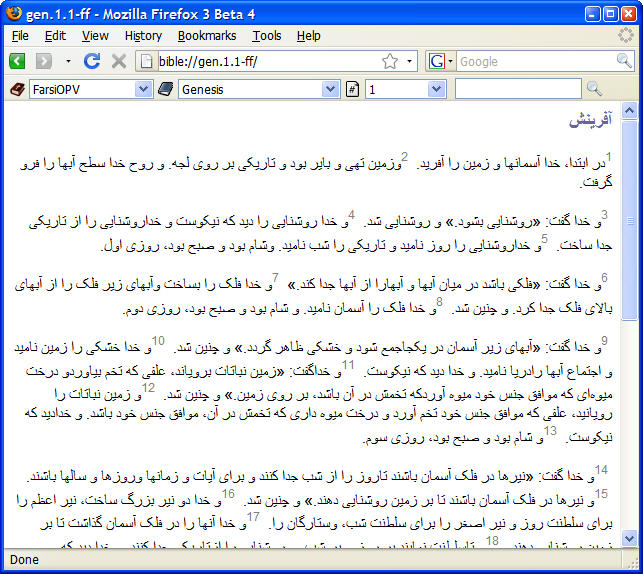
FireBible is a free Bible study tool for Firefox. Read Bibles and other biblical material in languages ranging from English to Arabic, Hebrew and Chinese from the comfort of the Firefox interface you are already familiar with, even when you’re offline! FireBible will work on Windows, Linux and the Mac for Firefox versions 3 – 3.6. Technically, FireBible will work on any platform which supports Firefox and Java.
Features
- Supports multiple versions of the Bible in multiple languages.
- Supports General Books, Commentaries, Daily Devotionals, Dictionaries, Glossaries, Maps and Images.
- Powerful search capabilities within Bibles.
- Ubiquity support for fast verse lookups and use.
- Displays linked reference notes if available.
- Adds the “bible://” and “sword://” protocols to Firefox, clicking such links in Firefox will immediately load the corresponding content in the browser.
- FireBible is URL based, so you can bookmark and tag chapters, verses and even search results.
- Integrated with Firefox’s browsing history, go back and forth between passages easily. Firefox 3 users can leverage the awesome bar to quickly navigate to recently browsed or bookmarked pages; open locations by simply typing in the page title. Highly detailed and categorized history and bookmark lists available.
- Multi-tab and multi-window support.
- Internet connection only required to download new material; all installed material can be accessed when disconnected.
FireBible uses Crosswire’s open source SWORD technology and modules, making a wide range of Bibles, General Books, Commentaries, Daily Devotionals, Dictionaries, Glossaries, Maps and Images available to users.
Installation
As mentioned above, FireBible needs Java to work. Before proceeding with the JSword and FireBible installation, you must ensure you have a Sun JRE/JDK installed. To test this, please click here, you should see the Java mascot dancing around with some info about your Java installation.
Windows / Linux: If the Vendor says “Sun Microsystems” and the version is Java 5 or Java 6, you should be good to go. If not, it’s unlikely that FireBible will work; I know for a fact that it does not work with GIJ/GCJ (which is the default Java installation on most Linux systems) and I have not tried other distributions. In this case, you will need to install a Sun JRE to use FireBible.
Click here, scroll down to “Java SE Runtime Environment (JRE)” and hit the Download button to get the most recent Java 6 update. Alternatively, Ubuntu / Debian users could simply run apt-get install sun-java6-jre and apt-get install sun-java6-plugin to install the required Java modules.
Mac: I believe you should be good to go as long as you can see the mascot dancing around and the version is Java 5 or Java 6. If not, please install the latest Java update from here.
Once Java is installed, you can proceed wit the JSword and FireBible installation; if you still have issues, please see the additional notes in the troubleshooting section.
Screencast: Setting up JSword & Downloading Bibles
Download and unzip JSword into a convenient location on your machine. I suggest picking up the most recent Binary zip from the JSword download site. This version of FireBible has been developed with JSword 1.6 but will work with all versions of JSword 1.0.7 and above. If you use 1.0.7, I would recommend upgrading to pick up bug fixes and be more compatible with recent operating systems like Windows Vista.
Alternatively, you can download BibleDesktop which is a mature, rich Bible study tool. BibleDesktop is based on and includes JSword. FireBible does not currently include any SWORD module management tools, so BibleDesktop can compliment it well.- Click here to install the FireBible extension. You may be informed that software is being installed, in this case, please Allow thegoan.com and try again. Alternatively, right click, choose Save Link As… and save the XPI file locally. Open this file in Firefox ( File > Open File…) to complete the installation. The extension will be available when you next start Firefox.

After restarting Firefox, go to Tools > FireBible and click the Select… button to select the folder you unzipped JSword into (or the folder in which you installed BibleDesktop). This folder will contain several .jar files including jsword-[version].jar. Click OK to complete the installation process.
Downloading Bible Modules
The FireBible and JSword installations do not contain any Bibles, so you need to install the versions you want before being able to use them. There are three ways in which you can do this:
- Integrated Book Manager (since FireBible 1.1)
- Click Tools > FireBible and then the Manage Books button to bring up the Book manager.
- Select a Bible or any other module from the tree and click Install to install it. You can install as many modules (of any type) as you wish.
- Click OK to close the Book manager and OK again to close the preferences dialog. The installed modules should be available for viewing immediately.
- Manual
- Go to the Crosswire Bible Modules page. Scroll through the list and download the module you want from the Raw ZIP column. Unzip this module to a convenient location. You can download as many Bibles as you like. You can also download other types of modules like Commentaries, Dictionaries, General Books, etc. (click on the appropriate category on the left). Unzip them all to the same location.
- Next, go to Tools > FireBible and add the folder into which you unzipped your modules to the Module folders list. FireBible will refresh and pick up any modules it locates in the specified directory. You can unzip multiple modules into the same directory, but any new modules added to an existing directory will not be picked up until you restart Firefox (will be fixed in a later version). Any modules installed in your <user_home>/.Sword (<user_home>/AppData/Roaming/Sword on Vista) folder will also be automatically picked up.
- Using BibleDesktop
- You should find BibleDesktop in the folder containing JSword. Start BibleDesktop and go to Tools > Books. Simply expand the Biblical Texts section, find the Bible you want and click Install. You are free to install other modules types as well. BibleDesktop will install these books into a location that is automatically read by FireBible and you should see these books in FireBible (see the section below for details). If you don’t see the books in FireBible, you may need to restart Firefox to pick them up.
Use

FireBible Interface
Screencasts: FireBible Core Features Part 1: Bibles and Part 2: General Books, Daily Devotionals, Maps, Dictionaries & Preferences
Viewing a Bible Chapter
Simply click the first combo box to initialize FireBible. FireBible delays initialization until this time to prevent any delays while starting Firefox. Because of the delayed Java initialization, your UI might not react for a few seconds (this behavior changes based on your OS and Firefox version). At this time you will be warned if you haven’t got Java installed, or the JSword directory is invalid (see Installation section). If no installed Bibles are found, FireBible will not have any data to work with, you need to install these before you can being reading your Bible (see Downloading Bible Modules above).
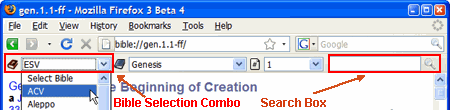
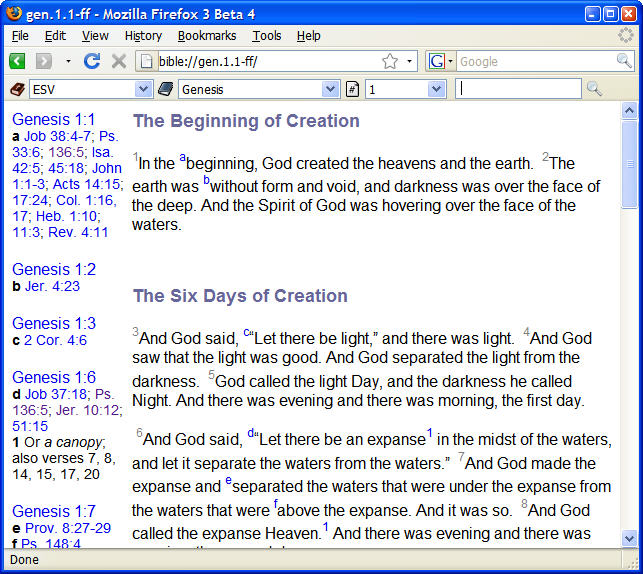
Use the first combo to select a Bible, the second to select a book and the third to select a chapter, FireBible will then look up the text and bring it up in the browser tab you are currently using.
Searching within Bibles
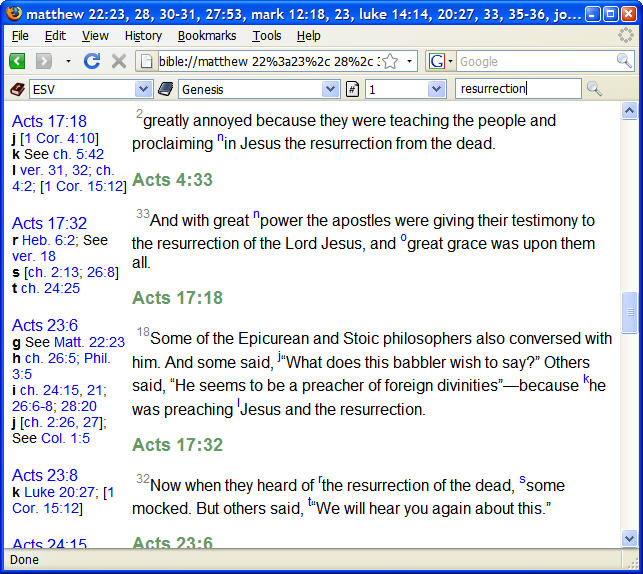
- Search for an exact word Enter your search time in the search box and click the button next to it or press enter.
- Indexing When you first attempt to search a specific Bible, FireBible will ask you to index it, this usually takes a minute or two on most machines. Your search will proceed after the indexing is complete.
Viewing Gen books, Commentaries, Dictionaries, Glossaries & Daily Devotionals
- Select View > Sidebar > FireBible to open the FireBible sidebar.
- Select the module you need from the first section and the chapter from the second section to have the contents displayed in the browser.
- Dictionaries, Glossaries and Daily Devotionals will display their contents in the third section.
- Commentaries selected in the sidebar will automatically display content corresponding to the last Bible verse read. If you open a new verse, the commentary will be automatically updated. By default, commentaries are not displayed in the Bible toolbar, but you can change this preference on Display preference page allowing you to specially navigate commentary content.
Using the Address Bar, History and Bookmarks
When you use the combos on the FireBible toolbar, observe the URLs being loaded into the browsers address bar. You can bookmark or tag these URLs just like any other URL (even search results can be bookmarked). They are also recorded just like any other site you visit in your browsing history and you may use the back and forth buttons or the History pane to load these locations. You can visit previously loaded content by simply typing in parts of the title into the address bar.
If you go to a bible:// URL directly without selecting a Bible from the first combo, the default Bible will be used to load the corresponding content. If a default Bible has not been set, the first Bible in your list will be used. To set the default Bible, go to Tools > FireBible > Display and select a Bible from the list.
In FireBible 1.0, history and bookmark menus are added to the FireBible toolbar. These menus will display only FireBible content, leaving your regular web browsing out of the lists to aid focused navigation. FireBible will categorize the content visited into the following categories:
- Bibles/Commentaries/Questionable
- General Books/Daily Devotionals/Essays/Other
- Maps/Images
- Dictionaries/Glossaries
The history and bookmark menus will display both categorized and un-categorized content. All elements in these lists are created using Firefox 3’s places query syntax.You can add your own queries to these toolbar items by creating new queries and placing them in the Bookmarks > FireBible History and/or FireBible Bookmarks folders. Any changes made to these folders will be reflected in the history and bookmarks menus on the FireBible toolbar, so you can modify any preset queries in this location or simply delete queries you don’t find useful. If these folders are deleted, FireBible will re-create them with default content when Firefox is next started.
Notes:
- Since additional info about the type of content loaded by FireBible has not been recorded prior to FireBible 1.0, any history and bookmarks created prior to 1.0 may not appear in the expected categories when you start using this version. Simply visiting these locations again should correct the categorization.
- You may need to install this extension in order to edit the location property of existing smart queries in the Organize Bookmarks dialog. This is only necessary if you want to modify existing smart queries.
Reorganizing the UI
By default, FireBible will add a FireBible toolbar to Firefox. If you don’t like this, you can simply right click an empty space on your menubar and select Customize. Drag the FireBible toolbar onto any other toolbar and deselect it’s custom toolbar. Or you can drag it into the Customize Toolbar dialog to remove it from the UI entirely.
Changing the Font
Go to Tools > Options > Content, in the Fonts & Colors section, click the Advanced button and make sure Western is selected in the first drop down. You can then proceed to specify whether the text should be rendered using a Serif or Sans-Serif font, go ahead and select a font of the chosen family and specify the font size. Due to a bug in Firefox, only Western font settings affect the text rendered in FireBible, even if it is displaying text in a non-western language such as Korean or Arabic. I will try to work around this in a future release.
Verse Display Preferences
Go to View > FireBible to bring up a number of items which allow you to change the way Verses and other content is displayed.
Using Ubiquity for Verse Lookup
Screencast: Using FireBible with Ubiquity
In most cases, using Ubiquity to lookup a passage will be faster than using the FireBible toolbar or keying in the URL manually. Ubiquity support is available in FireBible 1.0 and you will need Ubiquity 0.5 or higher installed to use it. Please note that Ubiquity 0.1.x will not work as FireBible leverages Ubiquity’s new “Parser 2″.
- Press CTRL + Space to bring up the Ubiquity interface. (Linux: Alt + Space, Mac: Option + Space)
- Type in sword mat 1
Observe the book suggestions change as you type m, a & t slowly. You could just type sword m 1 and scroll down to select Matthew from the presented list. As the book name becomes more specific, the number of suggestions is reduced. You should now see the first chapter of Matthew in the preview area on the right. The preview shares its display settings (headings, verse numbers, notes, etc.) with the primary FireBible settings accessible from the View > FireBible menu.
Continue to type from esv so that your input now looks like sword mat 1 from esv (replace esv with the name of a Bible version you have installed). The preview displayed will be from this version of the bible. If you change esv to acv for instance, then the acv will be used. You can use the long form of the Bible name if you wish, like from english standard and you can even specify the name of a commentary module.
If the from parameter is not specified, then the Bible selected in the FireBible toolbar is used for the preview. If no Bible is selected, then the default Bible (see FireBible preferences) or the alphabetically first Bible installed is used.- Now that we have identified the exact passage we want, we can do something with it…
Continue to type to firefox (your command will now look like sword mat 1 to firefox or sword mat 1 from esv to firefox) and press Enter to open the passage in Firefox.
You could type to clipboard instead, which would copy the passage to your system’s clipboard. Note that both plain text and formatted versions of the content are copied to the clipboard. Pasting to a simple text editor like Notepad would give you plain text. If you paste into a word processing application like Word for instance, you will get formatted content.
If the to parameter is not specified and you just press Enter, it will usually open the passage in Firefox. However, if you happen to be in a text area when you invoke Ubiquity, the contents of the passage will be inserted into the text area (you can specify to firefox if this is not your desired behavior). If it is a simple textarea element, plain text will be inserted, if you are in a rich text area, then rich text will be inserted.
Notes:
Both the from and to parameters are optional, you could press Enter immediately after typing in the verse reference. The default behavior (firefox or clipboard) on pressing enter can be set on the FireBible > Ubiquity preference page.- You are not limited to single chapter lookups, a reference like mat 1:1-5,10,15-ff will also work (Matthew chapter 1, verses 1 to 5, verse 10 and verses 15 to 25).
Lookups are limited to a single book of the Bible at this time. mat 1:1-5,2:10 will work, but mat 1:1-5,luk 2:10 will not. - For performance reasons, the maximum number of verses displayed in the preview is set at 30. You can change this value on the preference page.
- The content inserted in text areas or copied to the clipboard can be controlled on the preference page. Content displayed in Firefox itself will continue to use the regular verse display preferences (View > FireBible).
- Once FireBible is initialized, you should be able to omit the “sword” part of the command and start typing in your reference directly. In some cases, other Ubiquity commands may take priority over the sword command, in which case typing sword will help. An alternate name for this command is lookup bible.
Note: FireBible will be initialized when you first use the FireBible toolbar, load some FireBible content from the history / bookmarks or when you first type the “sword” command into Ubiquity. This is to prevent an initialization delay that would be caused when you first invoke Ubiquity if FireBible was not already initialized, irrespective of whether you were going to type in the sword command or not. You can change this preference on the preference page – check the Initialize FireBible when Ubiquity is first invoked checkbox. Turning this preference on may make sense if you use Ubiquity primarily for verse lookup. - Any errors that occur while using FireBible through Ubiquity are only silently logged, no dialogs are displayed since they would interrupt Ubiquity’s functioning. Ergo, please make sure FireBible is working from the toolbar before attempting to use it through Ubiquity.
- FireBible does not need the FireBible toolbar to function (though you currently still need it for search capabilities), you can lookup bibles and verses exclusively through Ubiquity.
F.A.Q. & Troubleshooting
- I cannot install FireBible, an Error dialog pops up with an error code.
This could be caused by reasons ranging from a corrupt download to a corrupt Firefox profile. See this article for more details on how these issues can be fixed. - When I first click the Select Bible combo, I see a “ReferenceError: java is not defined” message.
Go to the Content preference page and make sure Enable Java is checked. The Content preference page is a tab in the Tools > Options / Edit > Preferences dialog. Also see following note. - When I click Select Bible, nothing happens. / The animated icon keeps spinning and there is only a Select Bible item in the list. / Error Console (Tools > Error Console) contains security exceptions.
- There is always a delay caused by the Java VM initialization during which the UI might not react or update. This delay varies depending on your machine’s speed and current load. Wait for a short while and try again. If the Bibles fail to load, please make sure you read the Java notes in the Installation section above. Though Linux and Windows boxes have Java pre-installed, Firefox typically cannot use this installation and this “half way” condition is sometimes difficult to detect, leading to problems such as these. Make sure you are using a Sun JRE and not something else like GCJ. See this Mozilla Zine article for further Java installation assistance.
If you’re using Java 1.6 update 10 or 1.6 update 11, please update to Java 1.6 update 12 or above. If you are forced to stick with update 10 or 11 for other reasons, you must turn the “next generation Java plug-in” off or FireBible will not work. Use the following steps to do this:- Open the Java control panel, it’s usually at c:\program files\java\jre6\javacpl.exe in Windows.
- Go to the Advanced tab and expand the Java Plug-in node.
- Deselect the “Enable the next-generation Java plug-in item.
- I cannot see any Catholic/deuterocanonical books in the the book list.
Currently SWORD only supports the 66 OT/NT protocanonical books as Bible Text modules (which is the only module type currently supported by Firebible). Catholic Bible support is a high priority for me and will be made available asap. - How do I save the displayed passage to a file?
Use File > Save Page As and select a location and a file name. Make sure you set the Save as type combo to Web Page, complete; Web Page, HTML only will not work. - If you still can’t get FireBible to work, please type about:config into your address bar. Right click, create a new Boolean called firebible.debug.active, set it to true and then restart Firefox. Now attempt to use FireBible and observe the errors logged in the Error Console at Tools > Error Console (please select the All tab). This log will help me figure out what is gong wrong.
Changelog
| Version 0.5.1 | First public version, only Bibles supported. |
| Version 0.8 |
|
| Version 0.8.5 |
|
| Version 1.0.1 |
|
Version 1.1 (Current) |
|
Credits
As previously mentioned, FireBible uses the excellent JSword framework, currently lead by DM Smith. None of this would have been possible without JSword; I wouldn’t have even started.
SWORD is CrossWire Bible Society’s fire Bible software project. JSword is a Java implementation of SWORD and uses SWORD modules.
FireBible has not been easy to develop and I had to face several challenges, right from implementing a new protocol to Unicode string management, Java integration, etc. The folks in #extdev over at irc.mozilla.org as well as the mozilla.dev.extensions group have helped a great deal. Mook, Moosop and Mark Finkle in particular. mitcho & satyr over in #ubiquity for assistance with Parser 2.
Cecilia for running into most of the issues which now make up the above F.A.Q and providing several “lay-speak” improvements to this page.
I’m Brian Fernandes, please see the about page for contact details. Bug reports and suggestions are encouraged and appreciated.
Screenshots
For details screencasts, please click here:FireBible Screencasts


Subscribe!

#1 by Emmanuel Emmanuel on September 30, 2009 - 7:59 PM
Please can I have a site from which to download bible from the internet. All I see are helps for the bible, but I am yet to install a bible software.
Thanks a lot for your sacrifice for the kingdom.
Sincerely.
Emmanuel
#2 by John on October 5, 2009 - 9:46 AM
I have BibleDesktop installed and working fine in Mac OSX 10.6.1. But nowhere can I find JSword*.jar on my Mac. Could you tell me what can I do to fill in the folders for JSword and the modules that FireBible requires?
#3 by Jason on October 9, 2009 - 5:37 AM
While using FireBible how can I toggle back and forth from showing to not showing Strong’s numbers? At this point I am unable to find away to even show Strong’s numbers while using KJV with Strong’s.
#4 by Brian on October 10, 2009 - 5:48 AM
Jason, Strong’s numbers support is part of FireBible 1.1 in which you can control the display of Strong’s numbers using View > FireBible > Show Strong’s Links.
Note: I hadn’t released 1.1 on thegoan.com until a few minutes ago, but I did release it on the Mozilla site last week; so you may have seen the support note there, but if you had installed the extension from here it still wouldn’t be available to you (update should be available now). Sorry for the confusion, let me know if you still can’t get it to work.
#5 by Tim Chesonis on October 11, 2009 - 1:21 AM
This is an incredible Firefox extension. You really have done a fantastic job on this project, Brian.
I use the NET Bible, and I’ve purchased 9 bibles from bible.org since 2006. I see that there is the possibility to enter in an unlock key, however, where does one purchase this unlock key? Will the unlock key from Bible.org work?
#6 by Brian on October 11, 2009 - 2:05 PM
Tim, thanks again
Yes, the unlock key is specific to the module and so the key you received from Bible.org should definitely work. If it does not, please let me know.
#7 by Guy Strickling on October 18, 2009 - 11:11 PM
Hi, I’m using Mandriva 2009 Spring and have had problems with the Bibletime freezing when scrolling, so thought I would try the Fire Fox addon. Works great on my desktop, but when loading it on my laptop, I have been unable to load the books, etc. The Java is working for all apps. but when I test it online the applet won’t load. However, when turning to other Java applications, seems to work just fine. I have loaded and reloaded the FireBible addon and rechecked my Java installations with no luck, any suggestions?
Guy
#8 by Brian on October 19, 2009 - 12:41 AM
Guy, what’s really important is that the applet must work. FireBible requires a fully compliant Java browser plugin since it is working from within your browser; even though other standalone Java apps work fine, FireBible may not. My recommendation would be to simply download and install Sun’s JVM for linux, which you can get here; this will also install the necessary Java plugin for Firefox. Hope this helps.
#9 by Ramon Arellano on October 19, 2009 - 11:09 AM
Boker tov. what’s this, a new pc Bible again. Wow! Let’s see this.
Thanks.
#10 by William Batten on October 24, 2009 - 6:38 AM
I am trying to download Fire bible, but I cant understand the installation procedure–I am confused about how to load the proper version of Java, and about how to select the correct folder to download the modules–I’ve tried several ways, but it says my selections are invalid–could someone give me clear step-by step help on this?
#11 by William Batten on October 24, 2009 - 7:16 AM
also I am confused about how to load j-sword-which step i take first to get the modules to load
#12 by kenny on November 11, 2009 - 3:54 AM
why can’t i get firebible [jsword] to open on windows vista, error message [JSword could not be loaded from the specified directory. Please correct this location (Tools>FireBible) before proceeding. When i press manage books.
#13 by Erik Vold on November 18, 2009 - 3:31 AM
Hey very cool extension!
Why don’t I see it on AMO?
Erik
#14 by Stan on December 7, 2009 - 10:31 PM
Hi,
Would your software support Windows 7? Your response is very much appreciated. Thanks.
#15 by sam amponsa on December 7, 2009 - 11:59 PM
great works
#16 by mattywix on December 10, 2009 - 7:07 PM
I get the same error as Kenny. I am choosing the correct folder where BibleDesktop is installed and where the jars are to be found, however firebible keeps saying jsword cannot be loaded! Im using windows 7.
#17 by mattywix on December 10, 2009 - 7:15 PM
The solution is to remove the read-only permissions from those folders. Windows is a very stupid operating system and it likes to mess things up this way by putting permissions you didnt ask for
#18 by Gareth Williams on January 30, 2010 - 5:20 PM
I also get this error under Suse Linux 11.2. Folder and file permissions are rwx for the user running firefox. Also if I run BibleDesktop.sh it displays the splash screen followed by an error: Invalid function call: jsword.crosswire.jsword.passage.PassageKeyFactory.instance(). This happens with both JSword and Bible Desktop…
I think it’s related to my Java version: OpenJDK Runtime Environment (IcedTea6 1.6.2). Will install another version when I have time.
#19 by Gareth Williams on January 30, 2010 - 6:46 PM
Yes it was the Java runtime version. If you have this problem in Suse Linux, go to System Settings/Advanced/YaST (type root password) software repositories. You need to add openSuse-xx-Non-Oss if not already there, and apply. Then click manage software. Search for Java, and uncheck java-xx-open-xx (about 3-4 of them). Check java-1_6_0-sun and java-1_6_0-sun-plugin (I also added devel and src). Accept changes, then restart firefox.
#20 by kenny on December 12, 2009 - 2:06 AM
mattywix please help!!! how do i go about removing the r-o p the folders? step by step instructions where to find them & how to remove
thanx kenny
#21 by Penny on January 27, 2010 - 12:00 PM
I have been reading so much about this program, after verifying my Java 6 update18 on windowsXP 5.1, downloading the jsword files and extracting, then installing the FireBible and preforming a restart then going to tools and FireBible preferences and choosing the file that contains the jsword files and attempt to manage books it still does not load the bibles. I tried to install the bibles manually as instructed later on this page and still am having no success. I have tried to trouble shoot in any way possible and am reaching deadends. Please advise. Thanks Penny
#22 by Brian on January 29, 2010 - 2:12 AM
Penny, before I go on, I want to make sure you had a look at the screencasts on this page? http://thegoan.com/firebible/screencasts/
Just to clarify, the JSword folder that you select should be a folder which contains several files with a .jar extension. Also, what error are you seeing exactly?
#23 by Penny on January 29, 2010 - 10:27 PM
Brian, Thank you for your response. I had watched the screencasts before but went back and watched again. Then I began to consider the error message similar to…. JSword pathway not found Please correct this location (Tools > FireBible) before proceeding.
So I went to my add on’s in Firefox & double checked the java platform, it was Java (TM) SE 6 UI18 but I decided to go to the java site and redownload the JRE just incase I did not have the full version. In installing it said I had this program, did I choose to reinstall & I did so.
Eureka!! Tthis time it worked. Thanks for your response. I believe after watching the screencast again it made me think the problem had to be with the Java program.
I am sure I will enjoy this program and Thanks for All of Your hard work!! Penny